(ManageEngine Endpoint Central – Software Deployment – Windows EXE from Local Computer)
Part 1 – Add the install files to a 7-zip archive
Before You start
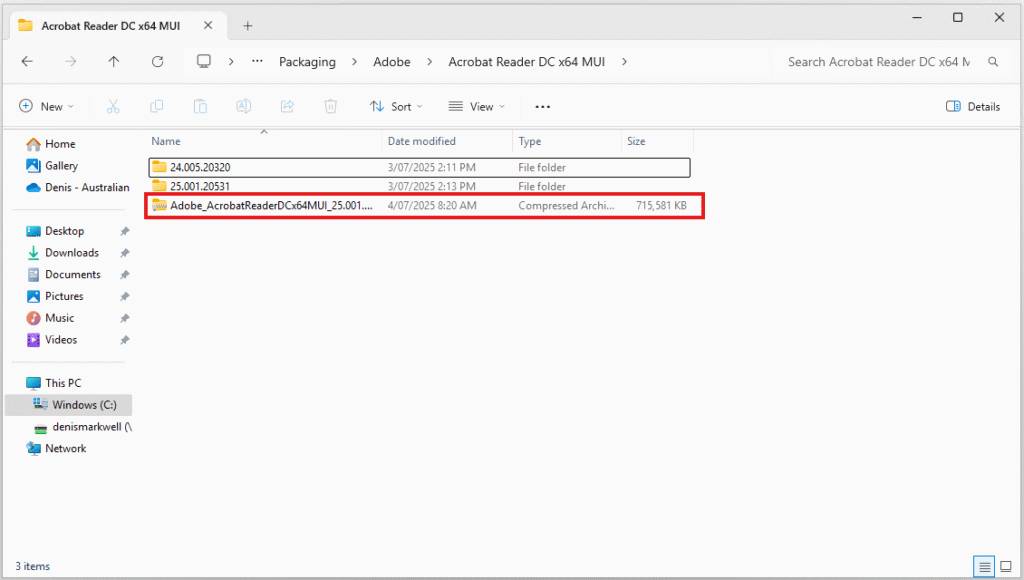
This guide follows on from the Adobe Acrobat Reader Packaging Guide.
To use this guide, you must have your install files all together in 1 folder and know the command line to install the application silently.
The Adobe Acrobat Reader guide will give you everything you need to continue with this guide but the process that follows can be adopted to any windows installer that runs an EXE, script or even a MSI that needs a custom install string.
Overview
ManageEngine Endpoint Central has a great feature where it allows you to add all the required setup files to a single 7-zip file and upload a single file to the portal.
This simplifies the package setup process, especially if you have an installer with hundreds or even thousands of files (I’m looking at you Auto Desk!).
First you add the install files to a 7-zip archive and you just upload the archive file. When machines run the installation, they download the 7-zip file and automatically extract the contents before starting the installer.
There is no need for you to worry about the commands to extract the files and when setting up the package in MEEC, you just use the regular setup string you would use for the installer technology in use.
Step 1
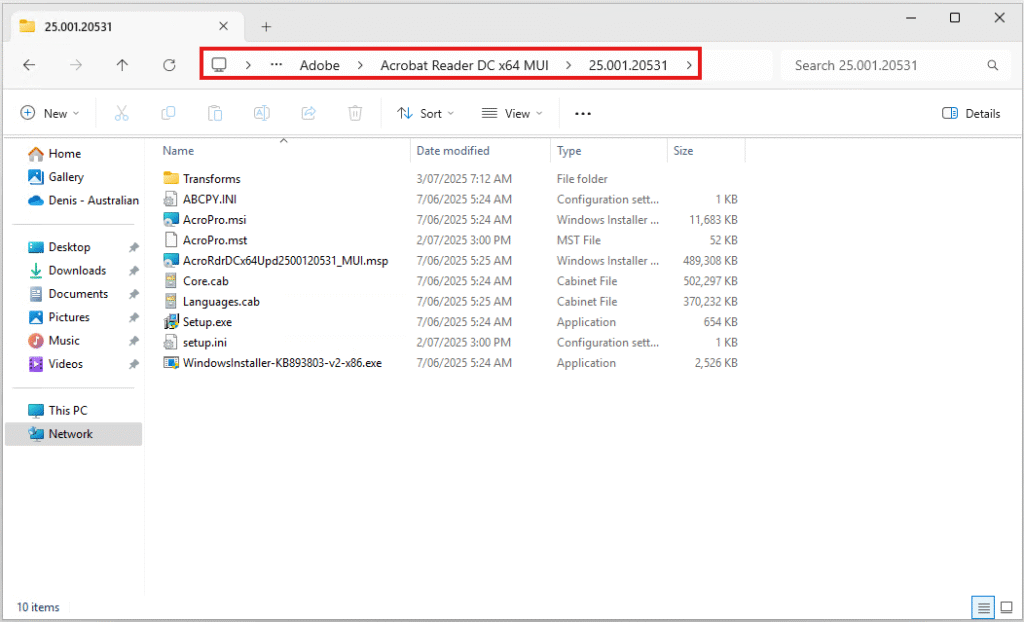
Navigate to the folder that contains the installer source files
Step 2
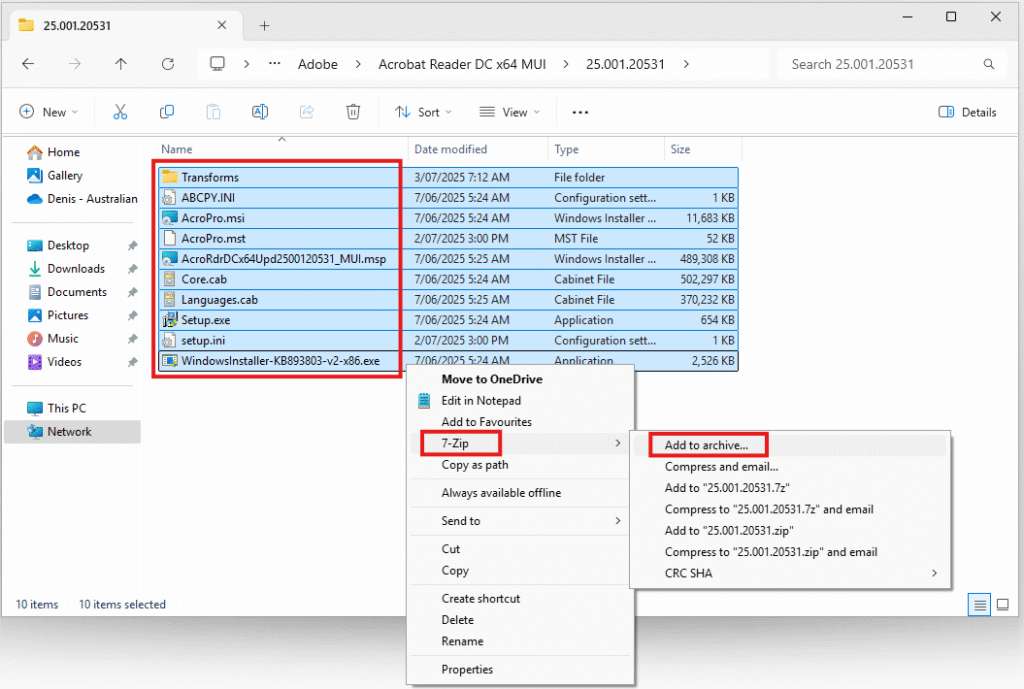
Select all the files and folders, then right click and select 7-Zip > Add to archive…
(Note – You obviously need 7-Zip installed 🙂, also select show all items on the right click menu if 7-Zip does not show up)
Step 3
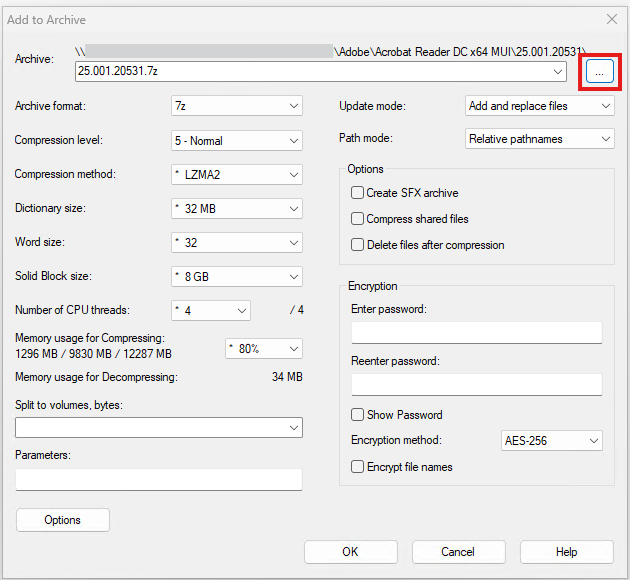
When the Add to Archive dialog opens, click the ellipse icon in the top right to select a new path
Step 4
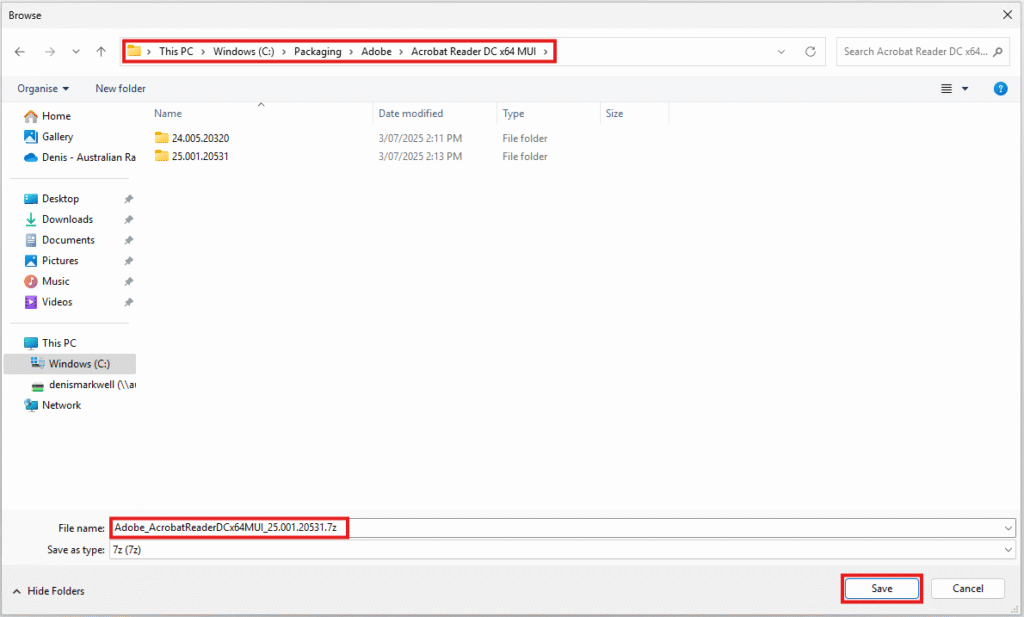
Change the path to somewhere local on your device. You may wish to also keep this in your software distribution library but it can always be recreated later if needed again.
In the Filename field, enter a name matching your naming conventions. I recommend not having any spaces in this name for maximum compatibility.
Step 5
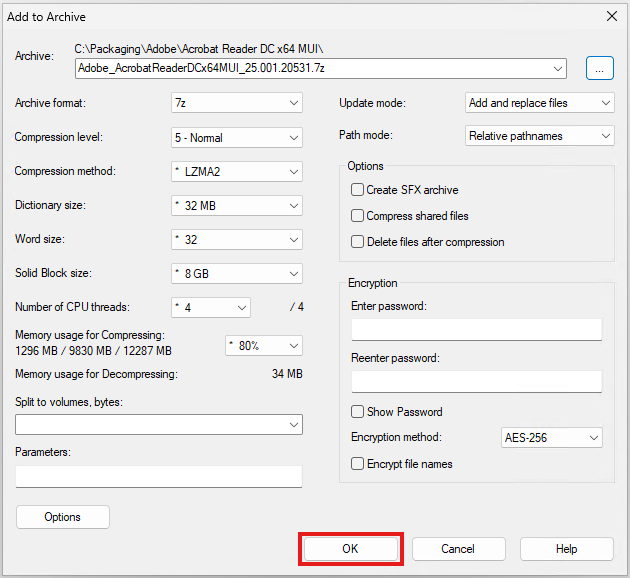
The remaining defaults should be ok, however if you frequently use 7-zip, it may have defaulted to your last sessions settings, so just confirm its using the 7z archive format.
Click ok to create the archive.
Step 6
Once complete, you should have the archive and you are ready to move onto creating the application in ManageEngine Endpoint Central