Part 2 – Download the latest Acrobat Installer
Step 1
Download the latest installer via the Enterprise Reader link: https://get.adobe.com/reader/enterprise/
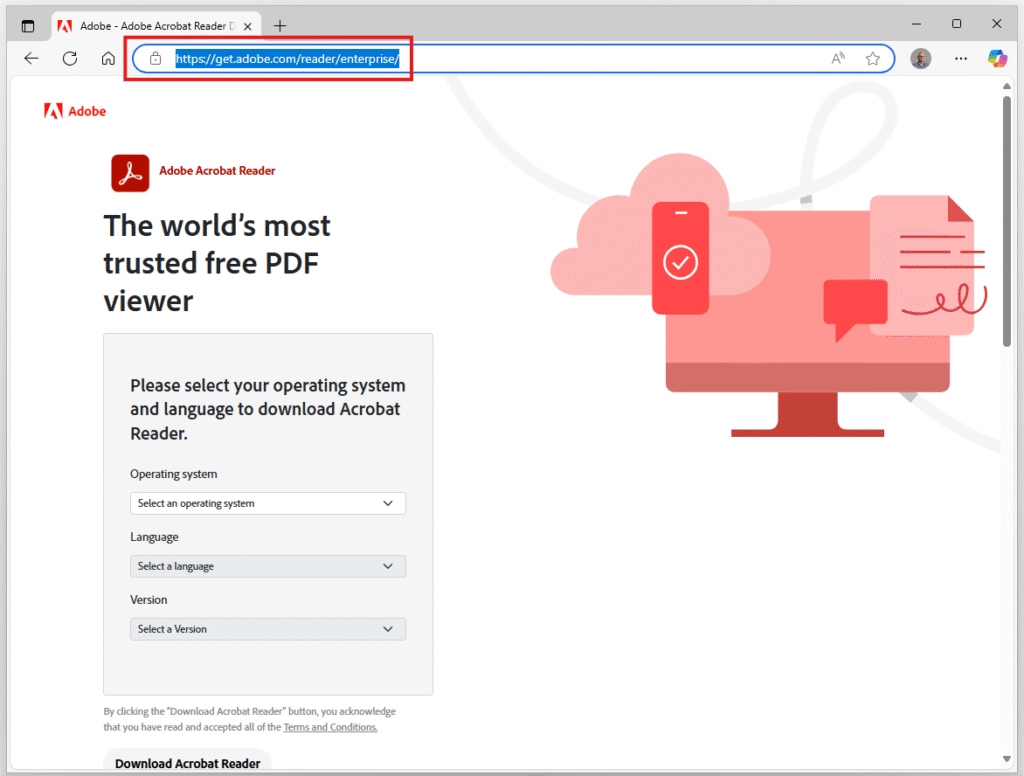
Step 2
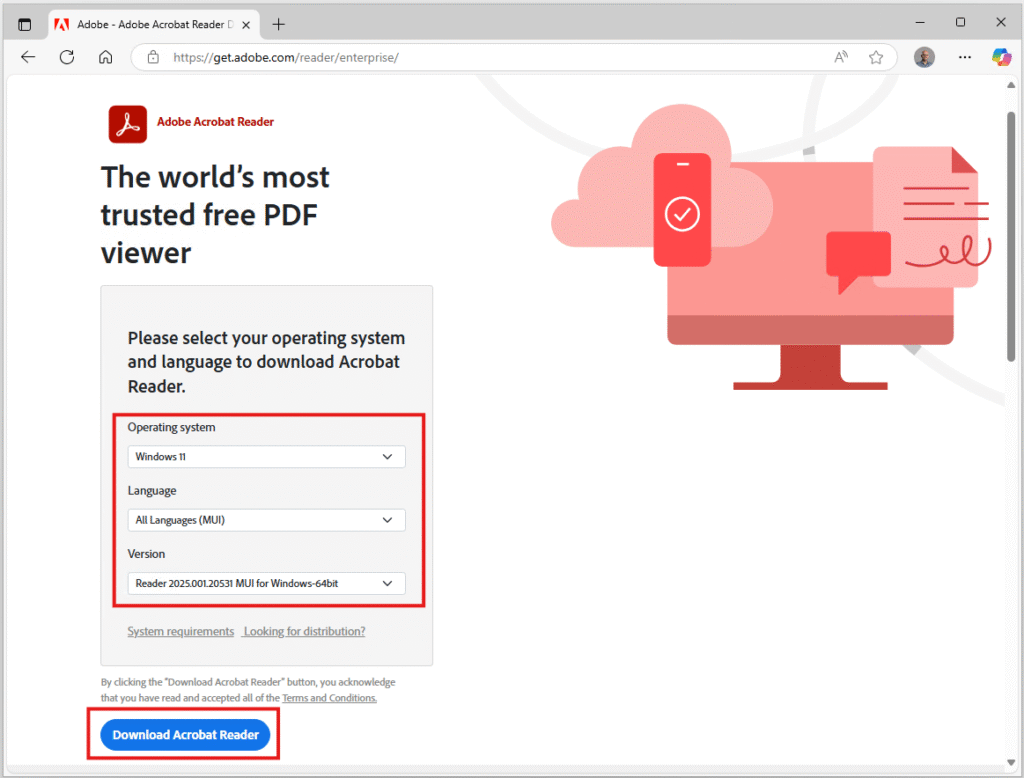
It’s recommended that under language you select All Languages (MUI), (Multilingual User Interface) as this allows organisations that support SOE’s with multiple languages to use the same installer across all builds.
It’s also recommended that you select the 64bit release. It’s not necessary today (although Adobe software does burn through memory so the day is coming when you might need more then 4GB of ram to open a 5mb PDF!!!) and does help to prepare for the future.
Step 3
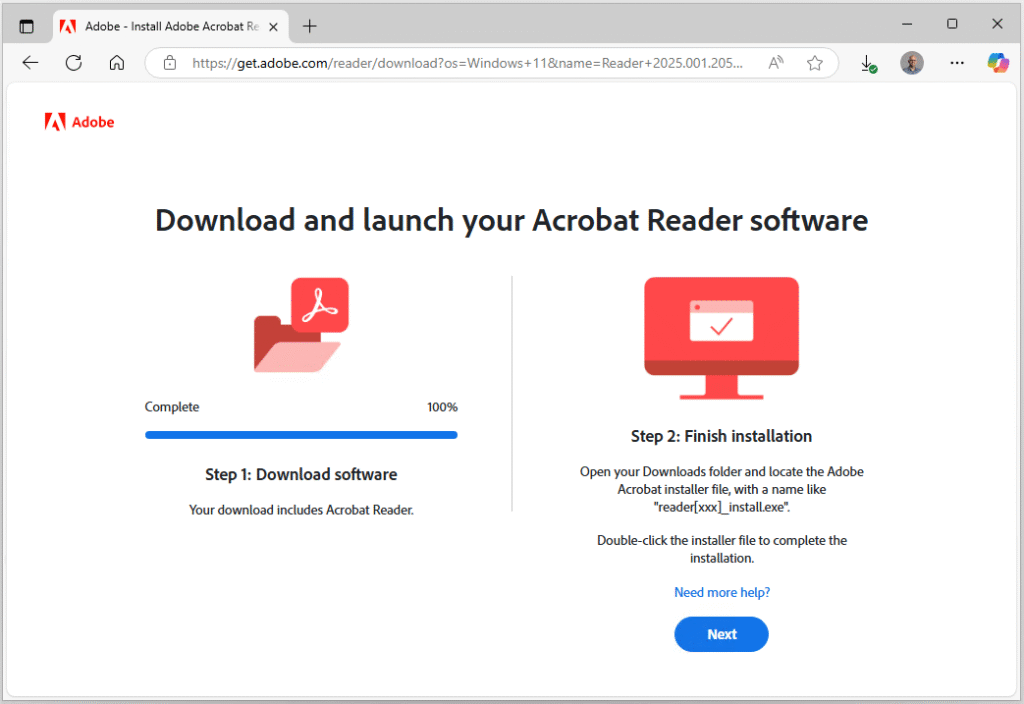
The website will now display a not very helpful message asking you to double click the installer file to complete the installation. Just close this page now.
Step 4
You can now locate the installer in the downloads file. (This is a temp machine I use for packaging and rebuild it regularly so nothing else here 🙂)
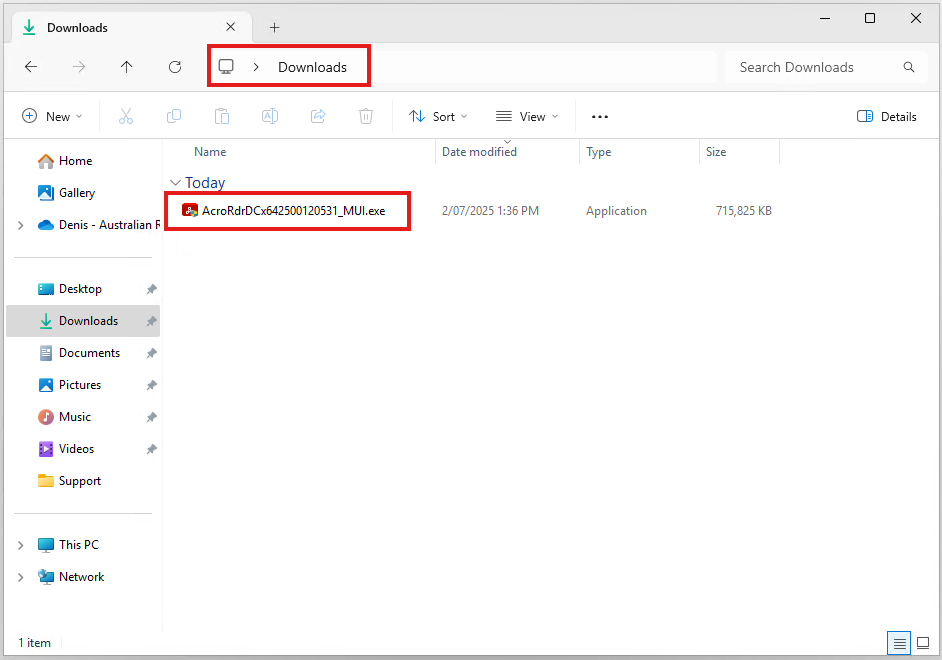
Step 5
Optional – move the Installer to a temp or packaging folder.
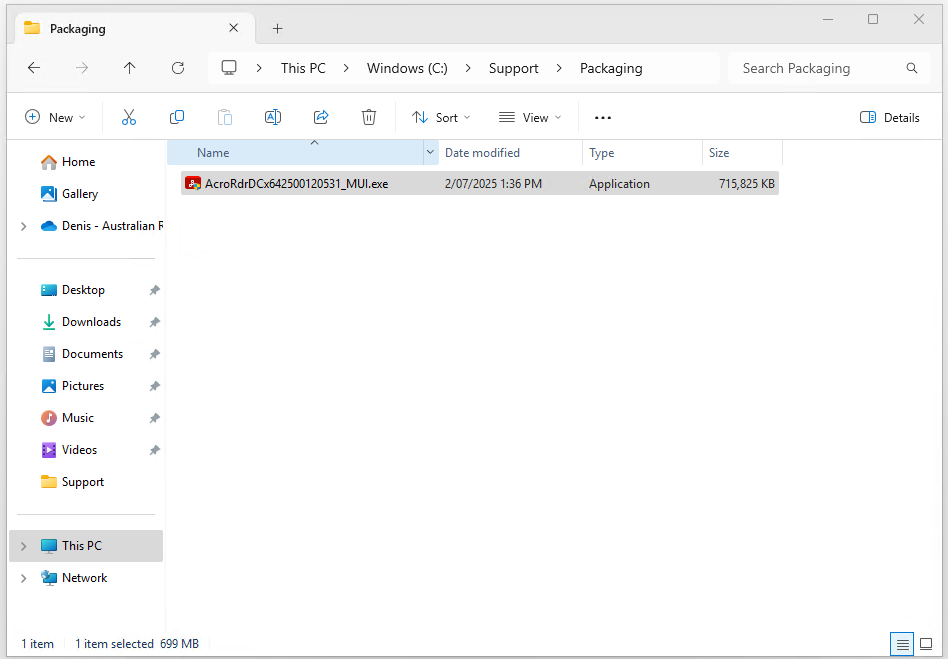
Step 6
Optional but strongly recommend you unblock any apps or drivers you trust and have download from the internet – Right click on the file and select properties.
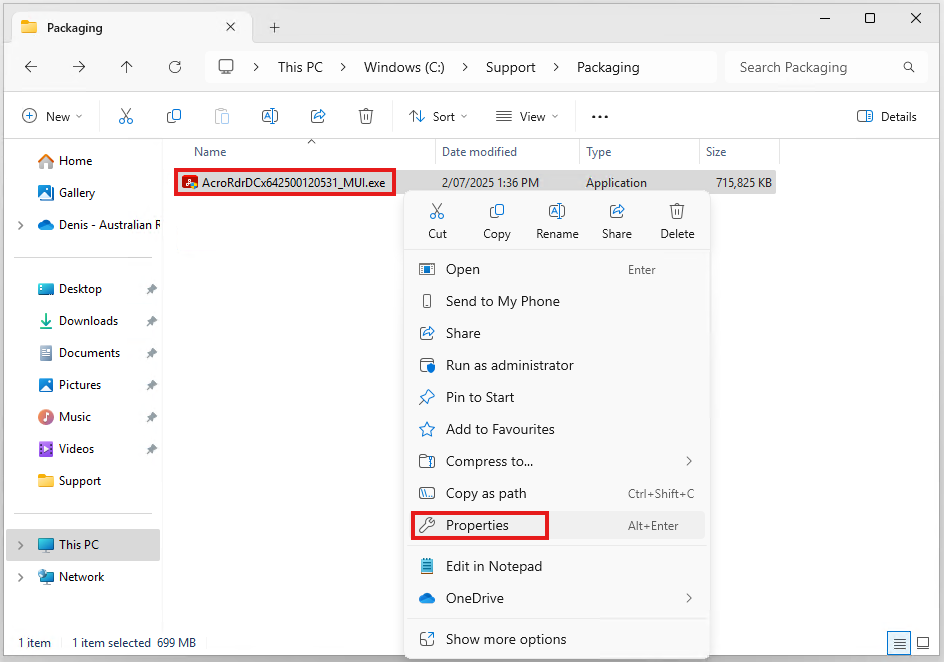
Step 7
On the General tab, check to see if there is an empty checkbox on the bottom right called Unblock.
If this is present, put a check in the checkbox and then click OK to close.
For some more background about the Attachment Manager here: https://support.microsoft.com/en-au/topic/information-about-the-attachment-manager-in-microsoft-windows-c48a4dcd-8de5-2af5-ee9b-cd795ae42738
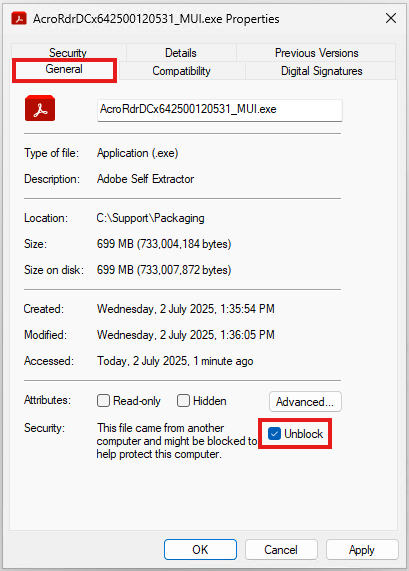
Step 8
Use your preferred compression tool to extract the contents of the EXE into a subfolder
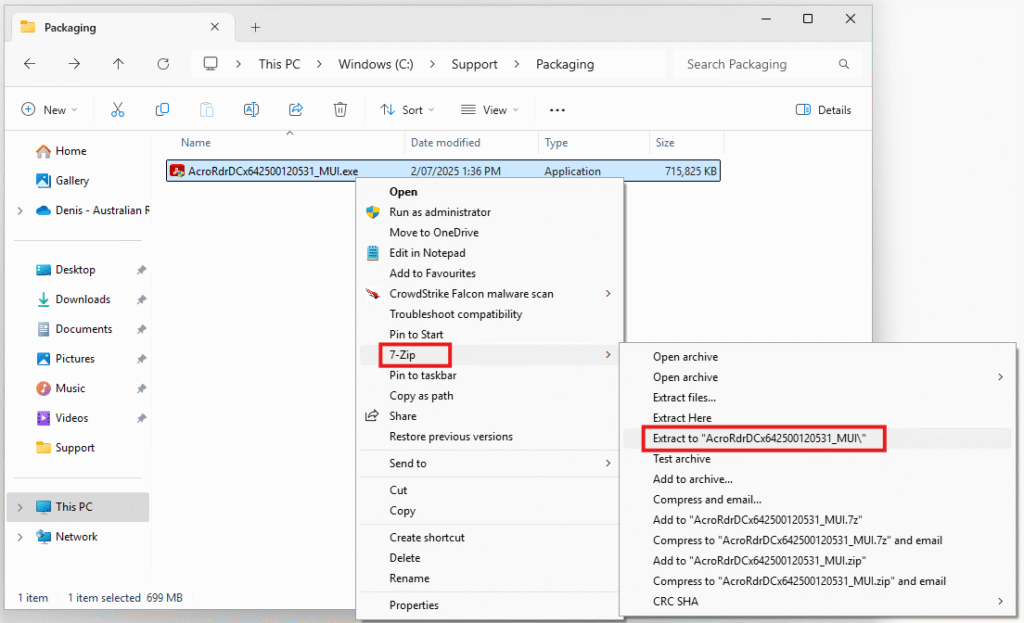
Step 9
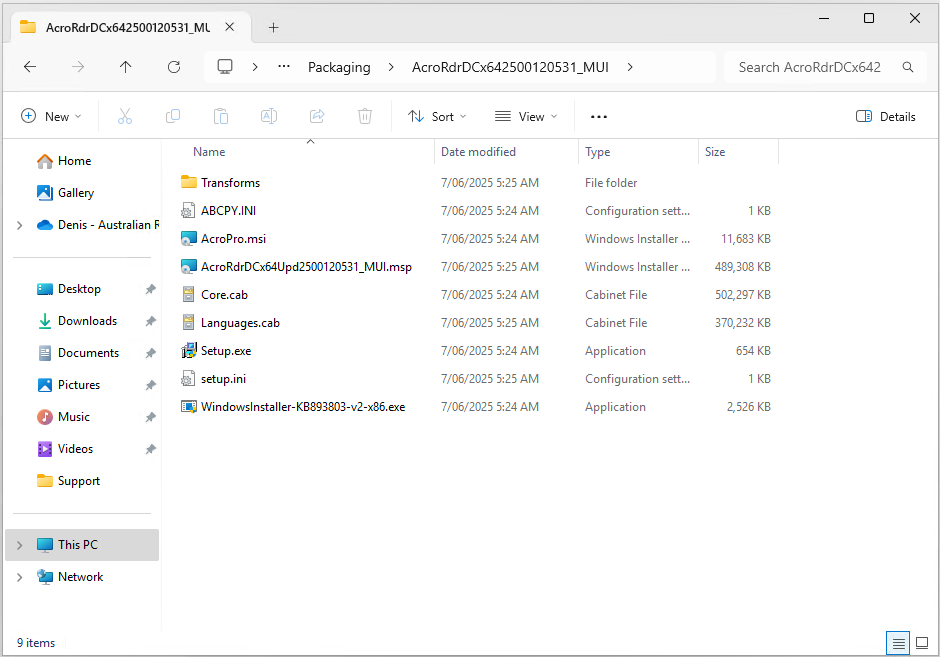
Now navigate to the subfolder that contains the extracted files. The contents will look like the screenshot on the right.
You can now move onto the next section which is creating a new package.